

From Setup to Pro Tips
Introduction
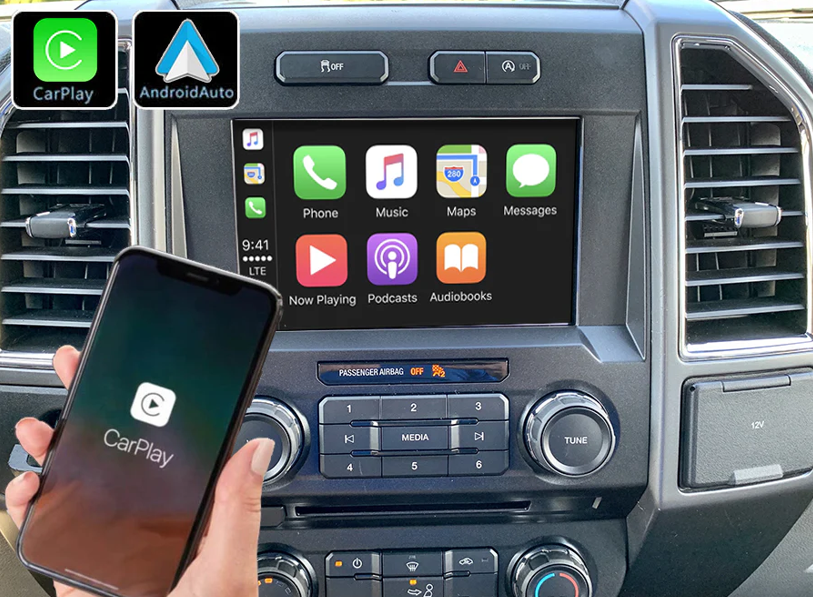
Staying connected while driving has never been easier thanks to Apple CarPlay and Android Auto. These advanced smartphone integration systems allow drivers to access apps, navigation, music, and calls safely through their vehicle’s infotainment display. Whether you’re new to this technology or looking to unlock advanced features, this comprehensive guide to Apple CarPlay and Android Auto will cover everything from basic setup to expert-level tips to help you make the most of your vehicle’s infotainment system.
What Are Apple CarPlay and Android Auto?
Apple CarPlay and Android Auto are smartphone integration platforms that allow you to project compatible apps from your iPhone or Android device onto your vehicle’s touchscreen display. This feature transforms your infotainment system into a familiar interface that mirrors your phone’s essential functions, all while keeping safety in mind.
Key Benefits
- Hands-Free Control: Access navigation, calls, and messages with voice commands.
- Improved Safety: Reduce distractions by avoiding direct phone use while driving.
- Seamless Integration: Enjoy a familiar interface that resembles your smartphone.
- Access to Apps: Use maps, messages, streaming music, audiobooks, and podcasts.
How Apple CarPlay Works
Apple CarPlay integrates your iPhone with your vehicle’s infotainment system, allowing access to iOS apps through your car’s touchscreen, steering wheel buttons, or voice commands using Siri. CarPlay supports apps like Apple Maps, Google Maps, Waze, Apple Music, Spotify, Audible, and more. Updates to iOS often bring new features to CarPlay, so keeping your phone up to date ensures you have the latest options.
Which Vehicles Support CarPlay?
Most modern Ford, Kia, Chrysler, Jeep, Dodge, Chevrolet, and GMC models include Apple CarPlay. However, compatibility varies by trim level and infotainment system. For example, Ford SYNC 3 and SYNC 4, Kia Connect, Uconnect, and Chevy MyLink systems all support CarPlay on many models.
How Android Auto Works
Android Auto connects your Android device to your vehicle to display compatible apps on the infotainment screen. You can use Google Assistant for voice commands, access apps such as Google Maps, YouTube Music, Audible, and messaging services, and benefit from regular Android updates that improve stability and add features.
Which Vehicles Support Android Auto?
Like CarPlay, Android Auto is widely available across Ford, Kia, Chrysler, Jeep, Dodge, Chevrolet, and GMC lineups. Always check your owner’s manual or dealership to confirm compatibility.
How to Set Up Apple CarPlay
Wired Setup
- Plug your iPhone into the USB port labeled with a CarPlay or smartphone icon.
- Accept permissions on both your iPhone and the infotainment system.
- The CarPlay interface will appear on your vehicle’s display.
Wireless Setup
- Ensure your vehicle supports wireless CarPlay.
- Enable Bluetooth and Wi-Fi on your iPhone.
- Pair your iPhone with the vehicle and select Enable Wireless CarPlay.
How to Set Up Android Auto
Wired Setup
- Connect your Android device using a high-quality USB cable.
- Download the Android Auto app if not already installed.
- Follow prompts on both your phone and the infotainment display.
Wireless Setup
- Confirm your vehicle supports wireless Android Auto.
- Turn on Bluetooth and Wi-Fi on your Android phone.
- Pair with your vehicle and approve connection requests.
Everyday Features for Beginners
Navigation
Use Apple Maps, Google Maps, or Waze to get real-time navigation with traffic updates. You can ask Siri or Google Assistant for directions by voice, keeping your hands on the wheel.
Music & Entertainment
Play your favorite music, podcasts, or audiobooks from apps like Apple Music, Spotify, Pandora, or Audible. Steering wheel controls allow you to pause, skip, or adjust volume safely.
Communication
Send and receive text messages, make calls, and listen to voicemails using Siri or Google Assistant. Dictating messages allows you to stay in touch without looking at your phone.
Calendar & Reminders
CarPlay and Android Auto can display your calendar events and reminders, making it easy to stay organized while on the go.
Advanced Tips for Experienced Users
Now for the next phase in this comprehensive guide to Apple CarPlay and Android Auto – Taking it to the next level!
- Customize App Layout: Arrange apps in your preferred order for quicker access.
- Third-Party Apps: Install compatible apps such as WhatsApp, Telegram, and Audible for expanded functionality.
- Voice Shortcuts: Set up quick commands like “Drive Home” or “Play Road Trip Playlist.”
- Use Split-Screen (where supported): Some systems allow you to see navigation and music at the same time.
- Combine Wireless Charging with Wireless Integration: Eliminate cables entirely for maximum convenience.
- Enable Dark Mode: CarPlay and Android Auto both have display options that reduce glare on night drives.
Top 10 Apps to Try
- Google Maps – Reliable navigation with live traffic updates.
- Waze – Community-driven traffic alerts and alternate route suggestions.
- Spotify – Popular streaming service with personalized playlists.
- Apple Music – Integrated music app for iOS users.
- Audible – Listen to audiobooks during long drives.
- Podcast Addict or Apple Podcasts – Access your favorite podcasts.
- WhatsApp – Hands-free messaging and calling.
- Amazon Music – Another great option for streaming music.
- Telegram – Secure messaging app with voice features.
- iHeartRadio – Stream live radio stations and podcasts.
These apps enhance your driving experience by providing entertainment, communication, and information while keeping your focus on the road.
FAQ for New Users
Do I need special cables?
For wired connections, use high-quality, certified USB cables. Cheap cables can cause connection issues.
Can I use wireless CarPlay or Android Auto on any vehicle?
Only vehicles that support wireless connections will allow cable-free use. Check your owner’s manual or consult your dealership.
Does using these apps drain my phone battery?
Yes, but you can use a charging cable or wireless charger to keep your phone powered while connected.
Will every app on my phone appear?
No. Only apps approved for CarPlay and Android Auto will be available. These apps are designed to minimize distractions.
Is there a cost for CarPlay or Android Auto?
No. Both systems are free to use, though some third-party apps may require subscriptions.
Can I get software updates for my infotainment system?
Yes! Many manufacturers release updates to improve compatibility and add features. Dealerships can assist with updating your system.
Are there privacy concerns?
While CarPlay and Android Auto are designed to be secure, it’s a good idea to disconnect your device when lending your car to others to protect your data.
Troubleshooting & FAQs
Why won’t my phone connect?
Check that you are using a certified cable and that Bluetooth and Wi-Fi are enabled. Restart both your phone and the vehicle’s system if issues persist.
Why is my audio lagging?
Audio lag can be caused by poor cable quality or weak wireless signals. Try a certified cable or sit closer to the vehicle’s receiver.
Are all apps compatible?
Only approved apps designed for minimal driver distraction are supported. Check the Apple App Store or Google Play Store for a list of compatible apps.
My apps keep disconnecting. What should I do?
Ensure your phone’s software and your vehicle’s infotainment system are updated to the latest versions. Some issues are fixed with software patches.
Safety Considerations
While these platforms enhance convenience, always prioritize safety. Avoid scrolling through apps while driving, and rely on voice commands whenever possible.
Why Visit Russell Barnett Ford of Tullahoma?
At Russell Barnett Ford of Tullahoma, our knowledgeable team can:
- Assist with Apple CarPlay and Android Auto setup.
- Update your vehicle’s infotainment software for compatibility.
- Demonstrate advanced tips and tricks to get the most out of these systems.
Call to Action
This comprehensive guide to Apple CarPlay and Android Auto has provided a vast array of information and tips to get you started with these user-friendly tools for making travel easier and much more enjoyable! However, it’s impossible to make sure everyone is covered with one little article – and that’s why we welcome you to drop by and visit us in person any time we’re open!
Visit Russell Barnett Ford of Tullahoma at 1106 E Carroll St, Tullahoma, TN 37388, or call (931) 563-1274. Our team is here to help you connect your smartphone to your vehicle and experience the safest, most convenient driving technology available today.
Having issues with your vehicle’s infotainment system, or anything else?
<<< Click here to schedule an appointment with our skilled team of experts >>>
More Information
<<< Click here for more information about Apple CarPlay – straight from the source >>>
<<< Click here for more information about Android Auto – straight from the source >>>
Connect with us


